Signing In to Your Portal
The Portal in Veracity Launch lets you complete courses and view many other types of learning content. Each time you go to use the Portal, you must sign in. Depending on how the administrator set-up you account, they sent you an email message with the web address of the Portal, your email-address/username (perhaps also a validation code to use to confirm your email address), and a password to sign in to the Portal.
Sign In Using an Email Address
Once the Portal administrator has created an account for you:
- In your browser, navigate to the web address for the Portal that the administrator sent you (e.g.,
https://<portalname>.golaunch.it). - After the front page of the Portal loads, in the upper-right corner of the page, click the Sign In button.
- In the Sign In page, enter your Email Address and Password.
- If the Portal administrator asked you to validate your email address by entering a code included in the message with your other account information, then click the Enter Validation Code link at the bottom of the page and enter the code.
- When ready, click the Sign In button at the bottom.
If Launch doesn’t recognize your email address, password, or validation code, try the troubleshooting steps below.
Email Sign-In Troubleshooting
If you’re having problems signing-in using your email address, then the links at the bottom of the Sign In page can help:
- If you must reset your password, then click the Forgot Password? link.
- If you can’t find the email message with the validation code, then click the Resend Validation Code link.
- If you still can’t get in, then click the Trouble Signing In? link to reset site data, and then try signing-in again.
Sign In Using a Social Account
The next time you sign-in to Launch, you can sign-in without using your Portal password by authenticating your identity using your password for another site instead.
In the Sign In page, click the Social tab at the top, and then click the button for the site you have a password for.
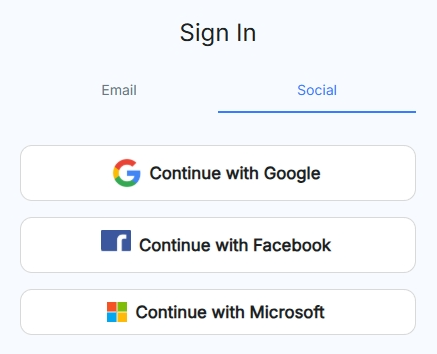
- If you have not already signed-in to that site’s account, then the browser takes you to that site and asks you sign-in, and then it opens Launch.
- If you’ve already signed-in to that site’s account, then Launch opens immediately!