Profiles
The LRS can detect and process incoming statements for a relevant xAPI Profile. You can load profiles from our internal registry (or you can create your own).

Before the LRS can validate incoming statements for conformance to an xAPI profile, you must load a profile.
Load Profile
To load an xAPI profile:
- From the left menu, click the Management > All Management Tools option.
- On the Management page, scroll down to the Data and Analytics section, and click the xAPI Profiles option.
- In the xAPI Profiles page, click the Load Known Profile button.
- In the Load Known xAPI Profile page, you’ll see an array of 49 cards. Each card is a registered xAPI profile. Search for or scroll down to a card for the profile you want, and click the Import Profile button.
You can select more than one profile.
Profile Actions
From the xAPI Profiles page, you can also edit or create an xAPI profile; and you can generate sample data that matches a profile.
In the table row for the loaded profile, click the button in the first column to open the Actions menu. From this menu, you can Delete the profile, Generate Sample Data, or open the Edit Profile page where you can edit the JSON-LD file for the loaded profile. You might want to edit a profile If the loaded version is correct, but it doesn’t match an earlier version used in your statements.
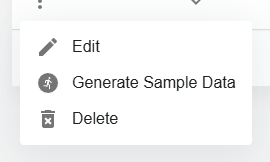
If your authoring tool “coined” unusual xAPI verbs, then you can create a custom xAPI profile for validating statements from that learning record provider. In the xAPI Profiles page, click the Create Profile button to open an editor page with a sample JSON-LD file that you can edit.
Profiles and Templates in Statements
When you load a profile into your LRS, the LRS validates incoming statements against it. Once data starts to flow into the LRS that matches the profile, then the LRS adds profile information to the incoming statements:
- If a statement matches a profile, then the LRS appends the profile ID in a
meta.profilesarray. - If a statement matches a template from the profile, then the LRS appends the template ID in a
meta.templatesarray.
Using these
meta properties, you can write scripts that filter or forward profile-conformant statements.Profile Overview Dashboard
To view the data in the out-of-the-box Profile Overview dashboard:
- In the left menu, click the Analytics > Dashboard option.
- In the left menu of the Analytics page, click the Basic Dashboards > Profile Overview option.
- At the top, click the Set Parameters button.
- In the Set Dashboard Parameters pop-up, in the Profiles pull-down menu, select the loaded profile you want, and click the OK button.
If needed, change the Time Range. The dashboard should now show “traffic, template breakdowns, and concept ratios for the specific xAPI Profile” that you selected. The concept ratios include pie charts of templates, verbs, and activity types.
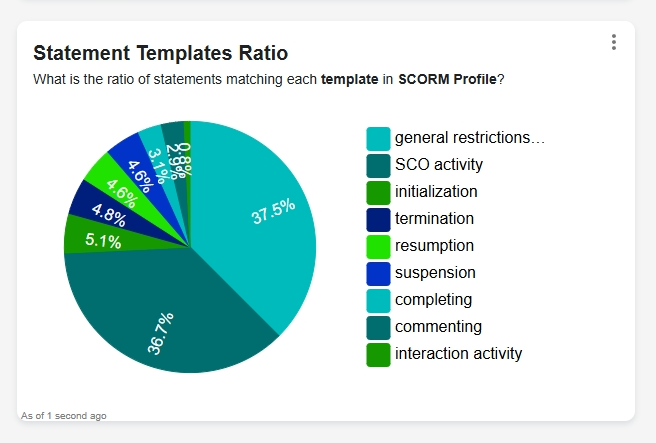
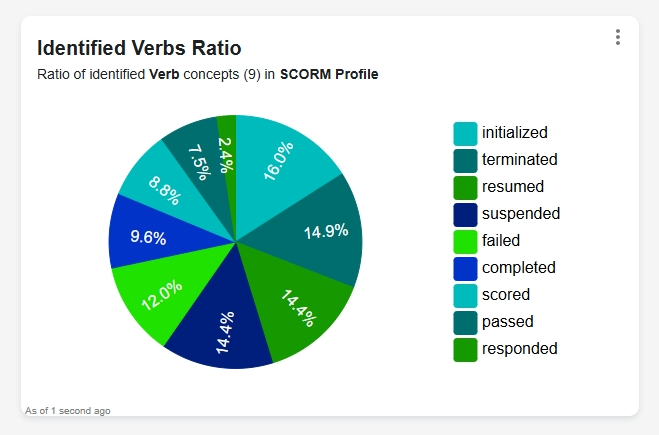
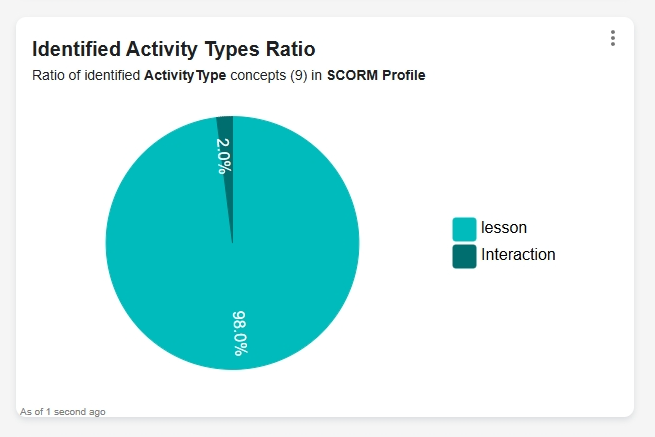
At the bottom of the Profile Overview dashboard, is a statement viewer of the all the statements that match the loaded profile.